
Image Compressor
Shrink your photo to any size in seconds — no upload, no signup. Your image is processed in your browser and never leaves your device.
Drop your photo here or click to browse
JPG, PNG, WebP · up to 20 MB · processed in your browser
Tip: most job and admission forms ask for a photo under 200 KB. Target size mode finds the best quality that fits — and shrinks the dimensions only if it has to.
Why compress an image?
Most of the time the problem is not the photo but its size. A job portal asks for a photo under 200 KB and yours is 4 MB. An admission form rejects anything over 300 KB. An email with five photos bounces back. A web page full of uncompressed images loads slowly and eats mobile data. Compressing changes the file size without changing what the photo shows — the same face, the same document, a fraction of the bytes. And because this tool runs entirely in your browser, the photo never leaves your device.
How to use the compressor
1. Drop a photo on the box above — or click to browse, or paste it. JPG, PNG, WebP and GIF work, up to 20 MB.
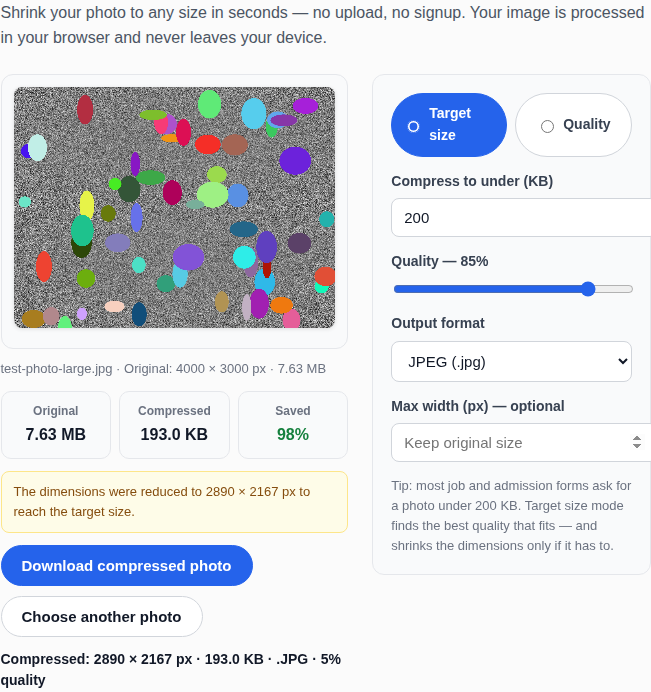
2. Pick a mode: Target size (the default) or Quality.
3. In Target size mode, type the size you need. 200 KB is the default, because that is what most job and admission forms ask for. The tool finds the best quality that fits.
4. Choose the output format: JPEG for photos, PNG if you need transparency, WebP for the smallest files.
5. Click Download compressed photo. The file is saved to your device with “-compressed” in its name.
Target size or quality — which should you choose?
Use Target size when a form gives you a limit, such as “under 200 KB” or “maximum 300 KB”. You type the number and the tool does the rest: it tries the highest quality first and only reduces the dimensions if quality alone cannot reach the target. Use Quality when you want control over the trade-off yourself.
| Quality | What it looks like | When to use it |
|---|---|---|
| 90–100% | Almost identical to the original | Printing, official documents |
| 80–89% | Very good, tiny loss only on close inspection | Job and admission photos (recommended) |
| 60–79% | Good at normal viewing size | Web uploads, email attachments |
| Below 60% | Visible artefacts, blocky areas | Only when the file must be tiny |
Which format should you download?
| Format | Best for | Notes |
|---|---|---|
| JPEG (.jpg) | Photos of people, places and documents | Smallest files for photos; no transparency |
| PNG (.png) | Screenshots, logos, images with text | Lossless — stays sharp, but files are bigger; the quality slider has no effect |
| WebP (.webp) | Web uploads where supported | Smaller than JPEG at the same quality; not every old form accepts it |
If a form says “JPG only”, use JPEG. If it says nothing, JPEG is the safe choice for photos.
What size do job and admission forms ask for?
| Where it is going | Usual size limit | Tip |
|---|---|---|
| Job application photo | Under 200 KB | Compress to 200 KB, JPEG |
| Passport photo upload | 300 × 300 px, under 200 KB | Resize first with our Photo Resizer, then compress |
| University admission form | Under 300 KB | Compress to 300 KB |
| Email attachment | Under 25 MB total | Compress each photo to 500 KB–1 MB |
Frequently asked questions
Is my photo uploaded anywhere?
No. The compression runs in your browser with JavaScript. Your photo never leaves your device, and nothing is stored on any server.
Why is my PNG still big after compressing?
PNG is a lossless format — it keeps every pixel exactly, so the quality slider cannot shrink it. To make a PNG smaller, switch the output format to JPEG or WebP, or reduce the dimensions.
Does compression change the dimensions?
Only if it has to. In Target size mode the tool first lowers the quality; it reduces the width and height only when even the lowest quality is still above your target — and it tells you when that happens.
Can I use this on my phone?
Yes. It works in any modern mobile browser. Tap the drop zone to pick a photo from your gallery.
What is a good target size?
For job and admission forms, 200 KB is the most common limit. For email, 500 KB–1 MB per photo is comfortable. For a website, 100–200 KB keeps pages fast.