Photo Resizer
Resize your photo in seconds — no upload, no signup. Your image is processed in your browser and never leaves your device.
Drop your photo here or click to browse
JPG, PNG, WebP · up to 20 MB · processed in your browser
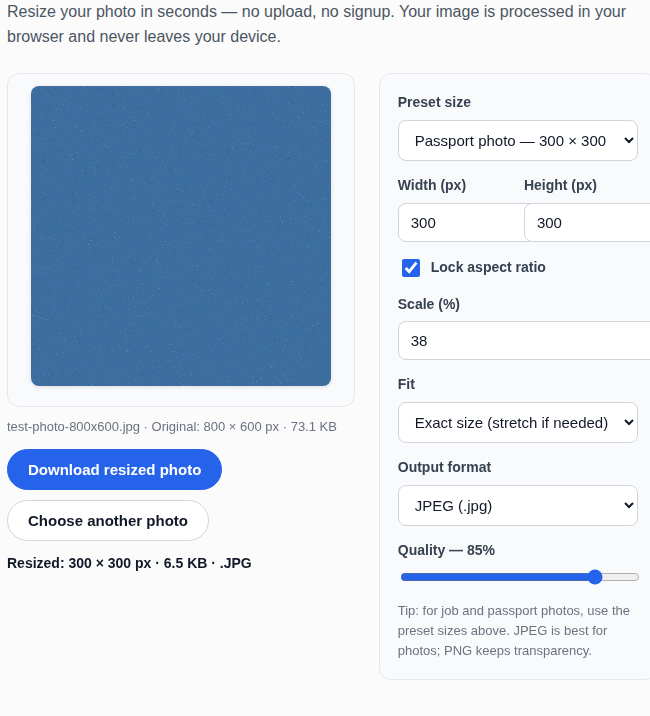
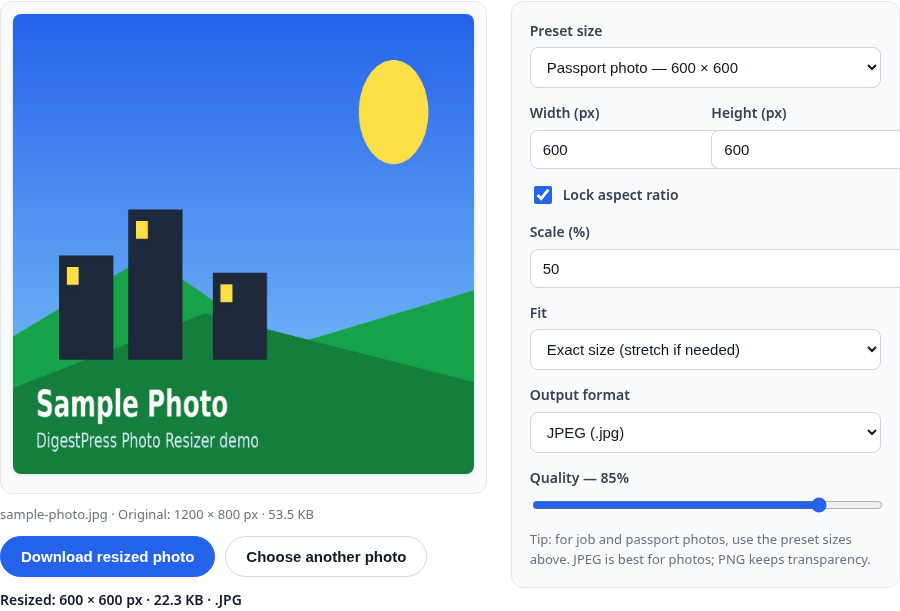
Tip: for job and passport photos, use the preset sizes above. JPEG is best for photos; PNG keeps transparency.
Why you might need to resize a photo
Most of the time, it is not the photo that is the problem — it is the size. A job portal asks for a photo under 200 KB and yours is 4 MB. A university form wants a passport photo at exactly 300 by 300 pixels. LinkedIn crops your profile picture in a way you did not expect. Sound familiar?
Resizing fixes all of that. It changes the width, height and file size of a photo without changing what is in it. And when you are applying for a job or filling in an admission form, that small fix is often the difference between a form that submits and a form that keeps rejecting your photo.
That is what this page is for. Upload a photo, pick the size you need, and download the resized version. No app to install, no account to create, and no waiting for an email with your photo attached.
What size should you choose?
It depends on where the photo is going. Here are the sizes people on DigestPress ask for most often:
| Where it is going | Size to use | Best format |
|---|---|---|
| Passport photo / ID photo | 300 × 300 or 600 × 600 pixels | JPEG |
| Job application / CV photo | 500 × 500 pixels | JPEG |
| LinkedIn profile photo | 400 × 400 pixels or larger, square | JPEG or PNG |
| Facebook post | 1200 × 630 pixels | JPEG |
| LinkedIn post | 1200 × 627 pixels | JPEG |
| Instagram post | 1080 × 1080 pixels | JPEG |
| YouTube thumbnail | 1280 × 720 pixels | JPEG or PNG |
If the form you are filling in mentions a size, use that exact size — do not guess. If it only mentions a file size limit, like "under 200 KB", resize the photo to a smaller width and lower the quality a little until the file size fits. The tool above shows you the new file size before you download, so you can check.
How to resize a photo with this tool
1. Upload your photo
Click the upload area, or drag your photo onto it. You can also paste a copied image. JPG, PNG, WebP and GIF files work, up to 20 MB.
2. Pick a size
Choose a preset from the list — Passport, Profile, Instagram, Facebook, LinkedIn or YouTube — or type your own width and height. Keep "Lock aspect ratio" on if you do not want the photo to look stretched. If you turn it off, you can set the width and height separately.
3. Choose the format and quality
JPEG is the safest choice for photos. PNG is better if you need transparency or sharp text. WebP gives you smaller files at similar quality. For JPEG and WebP, the quality slider matters: 85% looks good for almost everything, and going below 70% starts to show visible damage.
4. Download it
Click "Download resized photo". The file is named with its new size, so you can tell it apart from the original — for example, my-photo-300x300.jpg.
JPEG, PNG or WebP — which one should you pick?
Honestly, for most photos, JPEG is fine. It is accepted everywhere — job portals, university forms, social media — and it keeps file sizes small. Use PNG only when you need a transparent background or when the image is mostly text and lines, like a scanned document or a logo. WebP is the newer option: it usually makes smaller files than JPEG at the same quality, but a few older forms still do not accept it. If a form says "JPG only", give it a JPG.
5 mistakes that make a resized photo look bad
1. Making a small photo bigger. If your original is 300 pixels wide and you resize it to 1200, it will look blurry. Resizing works best when you go smaller, not bigger.
2. Turning off the aspect ratio lock by accident. A face that is stretched wider or taller looks wrong straight away. Keep the lock on unless you are deliberately cropping to a new shape.
3. Compressing too much. A photo at 30% quality might be tiny, but the blocky patches around faces and text give it away. Stay around 80–90% unless a form forces you below that.
4. Using the wrong format. Saving a photo as PNG when a form wants JPEG is the most common reason uploads get rejected. Check what the form accepts before you download.
5. Forgetting the file size limit. A photo can have the right width and height and still be too heavy. Watch the file size shown under the preview, and lower the quality or the dimensions until it fits.
Is it safe? Where does my photo go?
Nowhere. This tool runs entirely in your browser. Your photo is resized on your own device using your browser's built-in image tools, and it is never uploaded to our server or anyone else's. When you close the page, the photo is gone from the tool. That is also why it works fast — there is no upload and no queue.
One honest note: because nothing is uploaded, we cannot recover a photo for you if you close the page before downloading. Download the resized version before you move on.
Frequently asked questions
Is the Photo Resizer free?
Yes. It is free to use, with no signup and no watermark on your photos.
Do I need to create an account?
No. There is no account, no email address, and nothing to install.
What is the largest photo I can resize?
Up to 20 MB. Very large photos from a phone or camera work fine — the tool will shrink them to the size you choose.
Will resizing reduce the quality of my photo?
Making a photo smaller barely affects how it looks, as long as you keep the quality around 80–90%. Making it much bigger will make it soft or blurry, because the extra pixels have to be invented. Start from the largest original you have.
Can I resize a passport photo here?
Yes — choose the 300 × 300 or 600 × 600 preset. Just remember that a passport photo also has rules about background, lighting and framing, and this tool cannot fix those. It only changes the size.
Does it work on my phone?
Yes, the tool works in a mobile browser. Uploading from a phone gallery works the same way as from a computer, though typing exact dimensions is easier on a larger screen.
Why is the download button greyed out?
It stays inactive until you have uploaded a photo and the resized preview is ready. Upload a photo first, and it will become clickable.
What next?
If you resized a photo for a job application, you are probably one step away from applying. Have a look at the latest jobs on DigestPress, and if you want help with the application itself, the Career Guide has practical advice on CVs, interviews and workplace life — written for job seekers, not for search engines.